Connecting Channels
To maximize your privacy, Unthread can only track conversations in channels that you’ve added us to. This gives you more privacy control, and it requires an additional step of adding us to the channels you’d like to track. Let’s learn how!
Add Channels from Your Dashboard
Navigate to the desired Project from the left-hand pane, click on Channels, select the app you want to connect (Slack, Teams, etc.) from the upper tab, then click the “+ Connect” button in the upper-right corner.
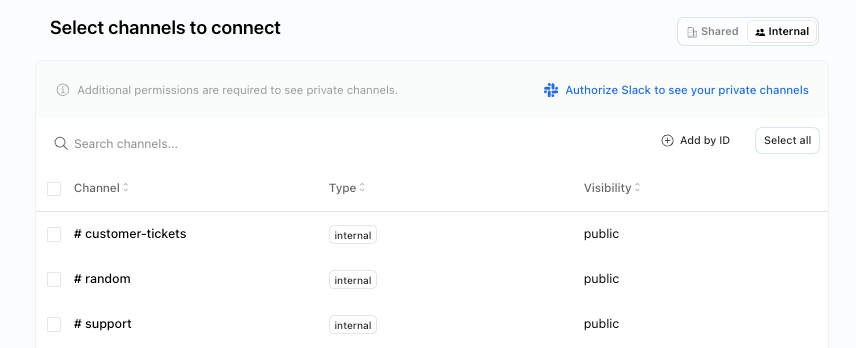
If you’ve connected to Slack, you can search through channels or filter for shared channels (aka Slack Connect channels). Check the box on the left next to the channel you’d like to add, and click the “Connect selected channels” button at the bottom.
The list of channels is pulled directly from Slack, so you should see channels here as soon as they are created.
Shared vs. Internal Channels
Shared channels are channels shared with non-members of your Slack workspace like customers and external partners.
Internal channels are channels within your company (e.g. IT Support Channel). To track internal channel tickets, click “Internal” tab and click the checkboxes to select.
Backfill Channel History 6 Months Option

Selecting the backfill history (6 months) option imports threads in that channel from the past 6 months as closed tickets. If there is content in the threads from the past 6 months that can inform AI response and knowledge base content we recommend utilizing this option when connecting a new channel.
Manage Channel Settings
Once you’ve connected a channel, you can manage the settings by clicking the corresponding channel then selecting the “Settings” option. Some settings will be automatically filled out, but you can adjust these on a per-customer basis.
For each individual channel, you can see a history of their conversations as well as override these settings:
- SLAs
- Triage channel
- Conversation tracking settings
- Auto-responder
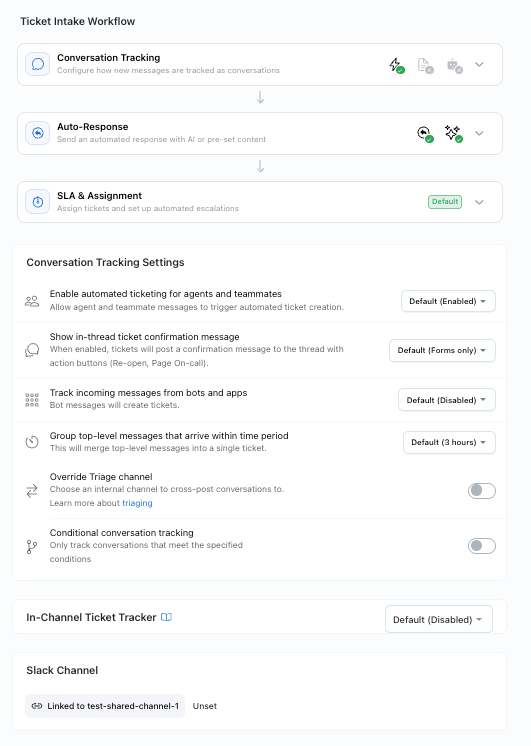
💡 Learn more about SLAs and triaging in customer channels
Connect New Channels Automatically
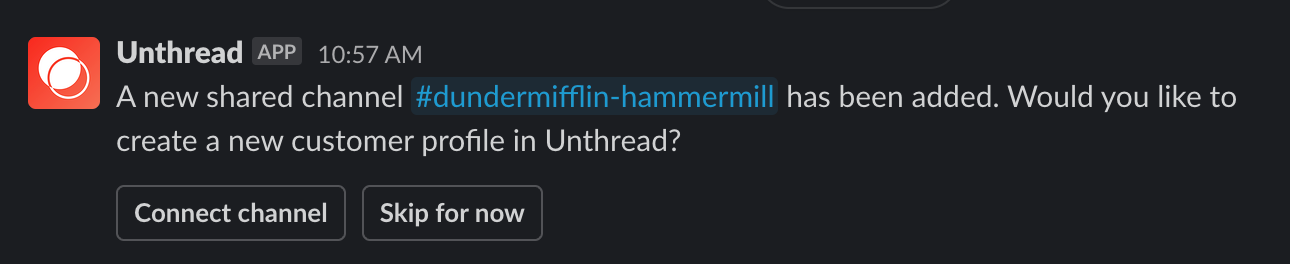
After connecting your first channels, we’ll automatically start to notify you via a Slack DM to create channels for new shared channels. Once connected, they will appear in your Unthread dashboard in the Customers list. You can also choose to enable an automation to connect channels as soon as they’re created. From your Profile page in the Unthread dashboard, you’ll see the following settings:
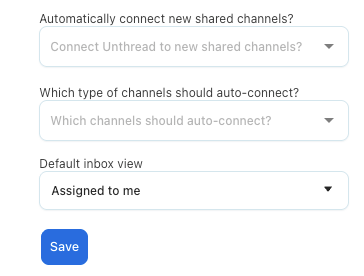
There are three options for automatic channel connection:
- Always connect new channels(channels shared with external customers)
- Ask before connecting new channels, and the app will DM you when new channels are connected (as seen in screenshot above)
- Don’t automatically connect, meaning we will not automatically connect channels, and you’ll need to go to the Customers page to connect new channels manually
To edit these settings, head over to your Profile in the Unthread web app.
ℹ️ Automatic channel tracking will only add a channel when it’s been shared outside of the organization, so no internal channels will be tracked 👌
Removing Channels
If you want to stop tracking conversations for a channel, head over to their “Settings” page from the dashboard. On the bottom left, you’ll see a “Disconnect channel from Unthread” button.
Troubleshooting
Let us try to diagnose the problem if you’re seeing something strange.
I created a channel but don’t see it in the “connect channels” screen
- The channel may already exist! We only show channels that aren’t yet connected. Someone on your team may have already connected this channel, or they may have automatic channel creation which would instantly connect the channel.
- When connecting channels, you’ll see a toggle between “Shared” and “Internal” channels. Be sure you’ve searched both options. A channel will be considered “Internal” if there are no members from outside of your organization in the channel yet.
You do not have permission to connect this channel
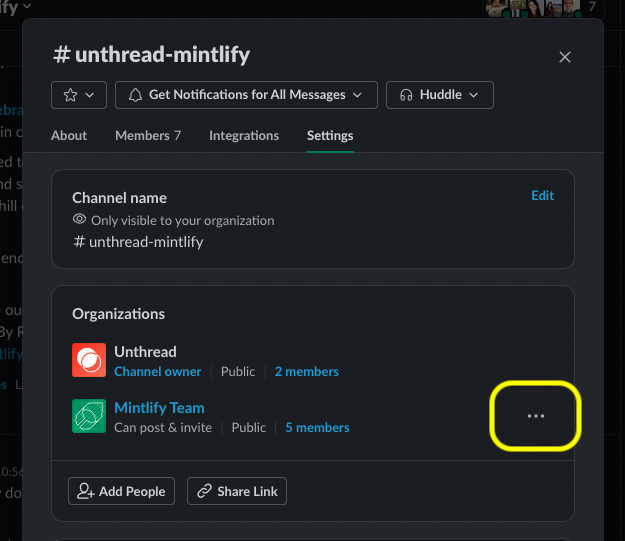
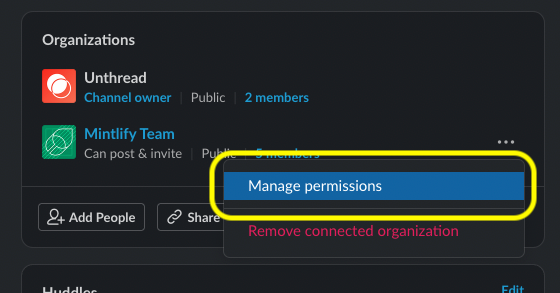
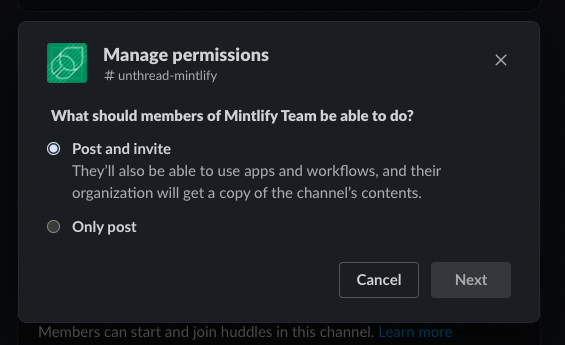
If you see this error, it means that the Slack Connect channel you’re trying to connect to was created by another workspace, and they’ve disabled your ability to invite people to the channel. More on that in the Slack documentation. Solution: Ask the creator of the channel to enable the “Post and Invite” permissions