Article
Jira
2 min read
Last updated 5 months ago
Setup Instructions
Head over to “Settings” > “Apps & Integrations”, and find your task manager. You’ll see a “Configure” button to prompt you to set it up.
Once you authenticate with your Jira account you'll be prompted with some options seen below:
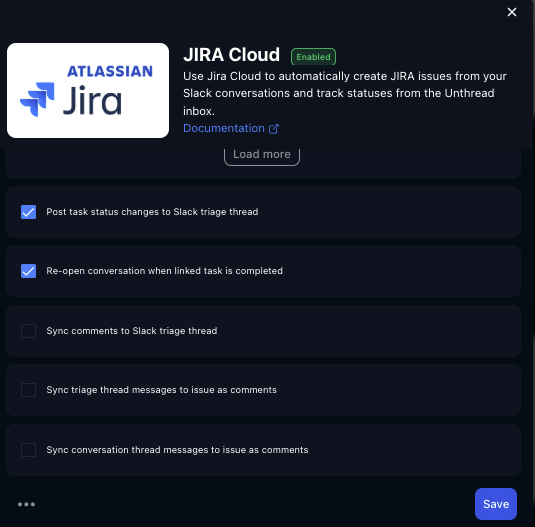
Jira Sync Settings Details
"sync comments to slack triage thread": When someone adds a comment on a linked Jira issue, that comment is automatically posted as a threaded reply in the Slack triage thread for the corresponding Unthread conversation"sync triage thread msgs to issue as comments":When someone posts a message in the Slack triage thread (the internal/agent-facing thread) for a conversation that has a linked Jira issue, that message is pushed to the Jira issue as a comment."sync convo thread msgs to issue as comments": When messages are added to the main conversation thread (the customer-facing thread, not just triage), those messages are pushed to the linked Jira issue as comments.
Linking issues across all Jira projects
If you need to link existing Jira issues from any Jira project in your Jira instance (instead of selecting from a limited project dropdown), enable the Jira sync option to connect to all Jira projects.
- In the Jira Cloud sync configuration, select All Jira Projects / enable Connect to all projects.
When enabled, newly created Jira projects are automatically included as well.