Managing Your Slack Inbox
The Unthread Inbox is a completely reimagined way of managing conversations across your Slack, email, and other support channels from one place.
Unthread is the only tool that provides an inbox view natively in Slack as well as a web version for both desktop and mobile.
Opening Your Inbox in Slack
To navigate to the Inbox, you can select the “Unthread” app from the left nav bar or by searching within the Slack application. The inbox will be displayed in the “Home” tab.
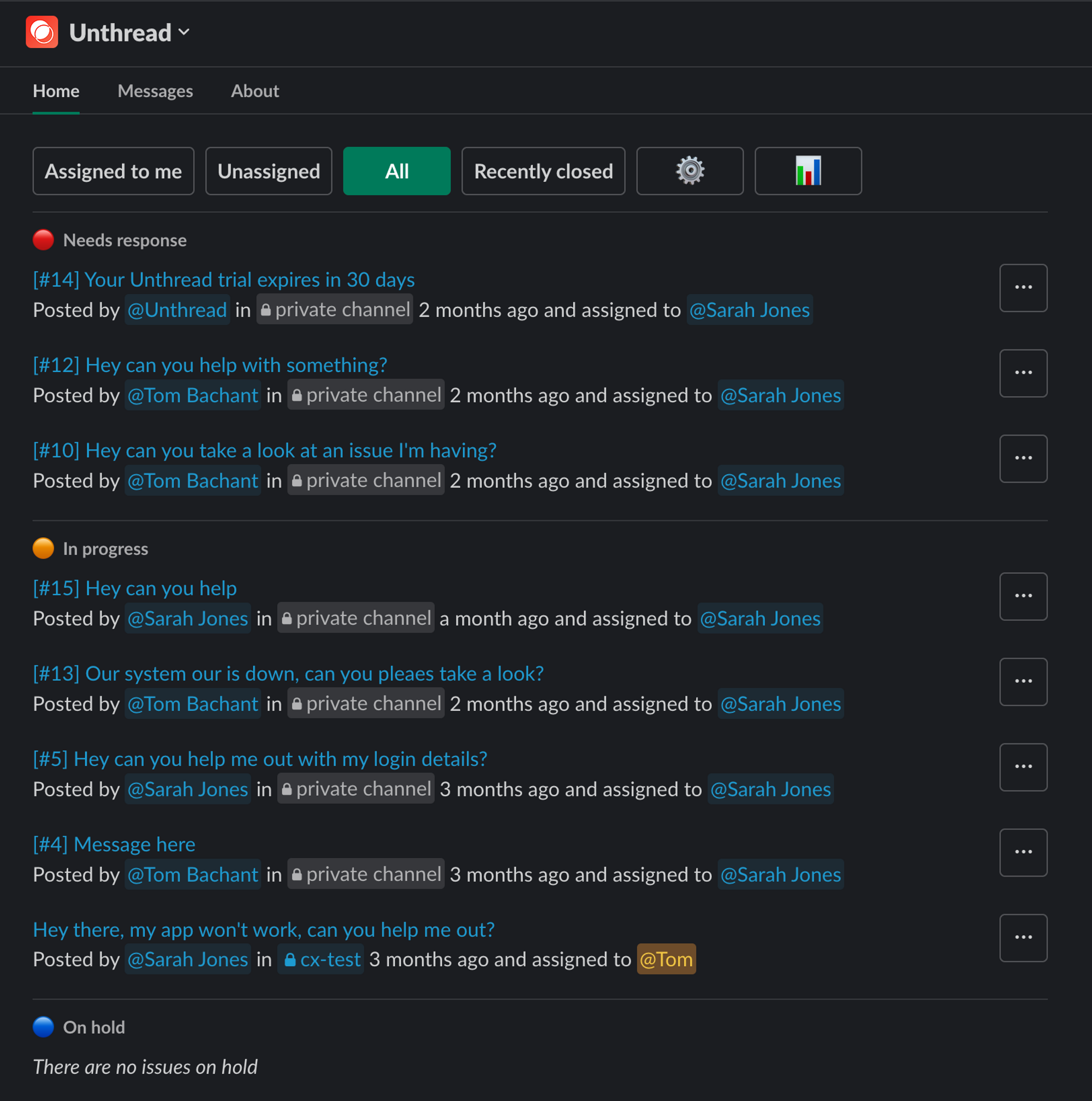
From the Inbox, you can:
- Click on a conversation to be taken directly to the corresponding thread
- Click on the 3 dots to bring up quick actions like manage conversation, close, snooze, etc.
- Click on the gear to manage settings like the sort order, as well as setting a backup rep if you’re out of office.
- Click on the graph to bring up your Unthread dashboard to view analytics and adjust your settings
Messages tab vs. Home tab
In Slack, the Unthread app has multiple tabs. They behave differently:
- Home: the Unthread Inbox UI. This view updates as conversation/ticket status changes.
- Messages: a stream of notifications/updates sent by the Unthread app.
Why old Slack notifications don’t change when a ticket is resolved/deleted
Notifications that were already sent by the Unthread app are not retroactively updated or removed when a conversation’s status changes later.
For example, if an approval request notification was sent, that notification will still be visible even if the conversation is later resolved or deleted.
Customizing Your Inbox
You can customize the inbox by clicking on the gear icon in the top right corner of the inbox.
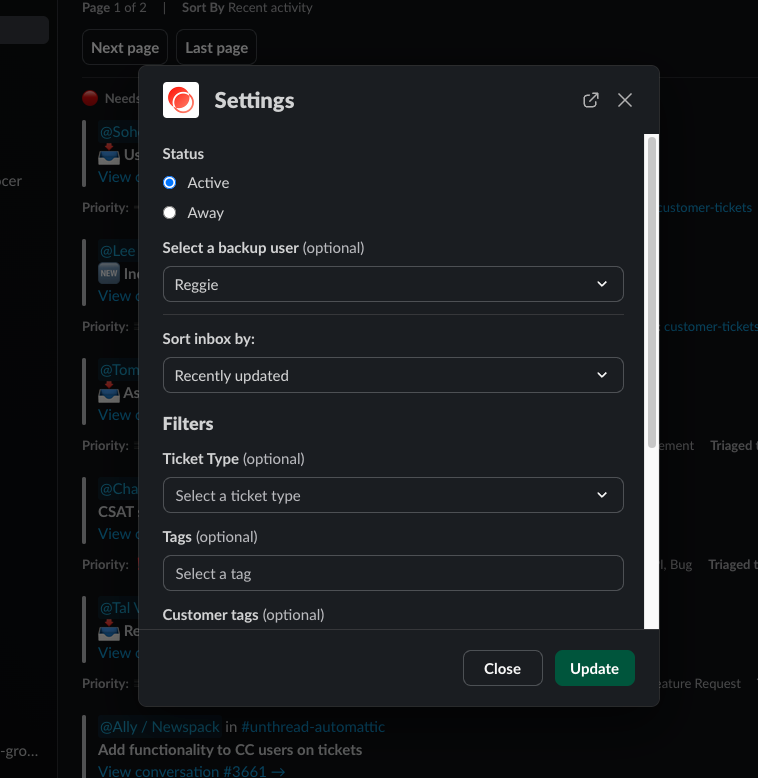
This lets you set custom filters, out of office hours, and more.