In-Channel Ticket Tracker
Give your customers the ability to track their open support requests right from a Slack channel.
How it Works
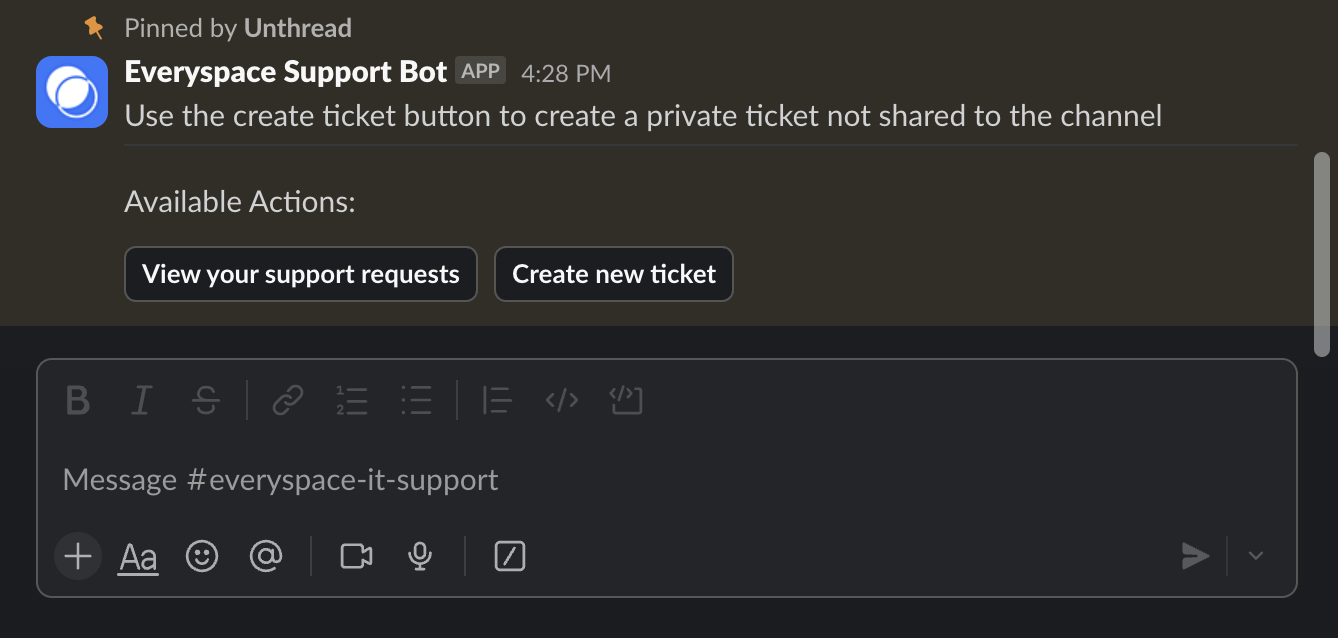
Create new ticket button
A button to create a new ticket is included in the In-Channel Ticket Tracker. If you would like this button pinned to the bottom of the channel enable the pin to bottom option on the In-Channel Ticket Tracker settings.
In-Channel Message
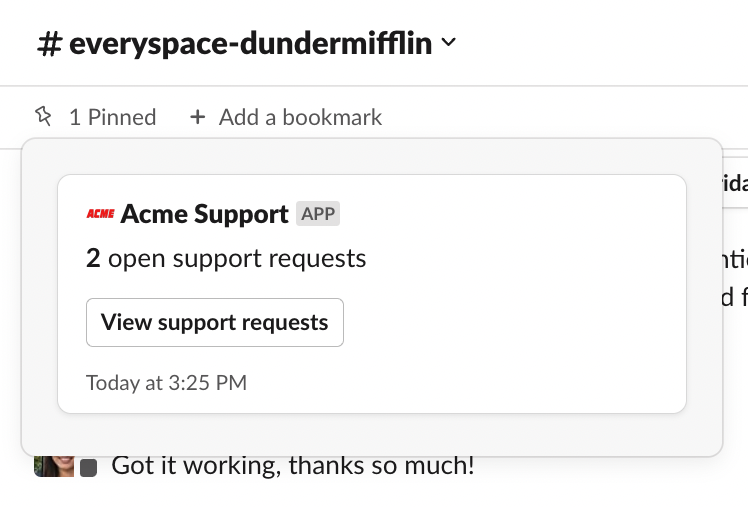
A message will be posted into the channel and will update to show the number of open conversations you have with that customer.
Request History Pop-up
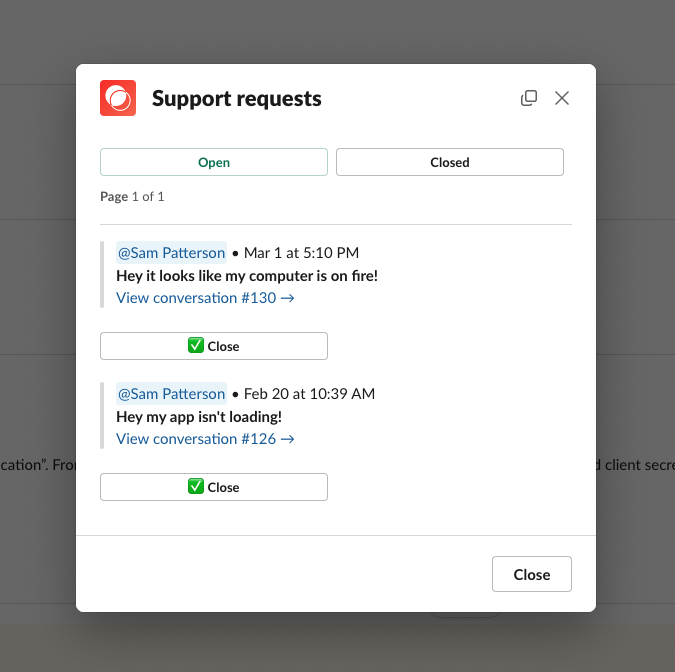
The “View support requests” button will bring up a modal where the customer can view the open & closed conversations.
From here, you can click on a conversation to be deep-linked back into the thread where it was taking place.
Customers can also close out their own issues if they feel that it’s been resolved, which will close it out on your end as well.
Pinning Message to Channel
The Unthread app will pin this message to the channel by default so it’s easy to navigate back to it from the top of the Slack channel view. If you prefer not to have the message pinned to the bottom of the channel you can disable this feature in the channel's In-Channel Ticket Tracker Settings.
Troubleshooting tip: Not seeing the message pinned? Head to your Unthread dashboard, which is likely telling you to reconnect Slack to give us the correct app permissions to do so. You can also manually pin the message.
How to Enable
Enable Per Channel
Select the relevant Project and then navigate to Channels --> select the slack channel that you want to modify --> Settings. Scroll down the Slack Channel Settings page to find the In-Channel Ticket Tracker settings.
- Enable the In-Channel Ticket Tracker to add it to the slack channel
- Use Private Mode to limit ticket visibility so each person can only see the status of tickets that they submitted
- Enable Pin to Bottom to keep the In-Channel Ticket Tracker pinned to the bottom of the slack channel
- Enable Include Count to show the total number of open support tickets
- Use the customization options to provide additional guidance on how to use the In-Channel Ticket Tracker correctly

Enable Per Customer
Head over to a customer’s profile from your Unthread dashboard. From the “Settings” tab, scroll down to the “Customer-facing view”.
By default, the global setting will be chosen. Use the dropdown to override and enable or disable specifically for this account, and click “Save”.
Enable for All Customers
You can globally enable or disable the message to appear in all of your customer Slack channels.
To change the default, head to “Settings” > “Slack” from your Unthread admin dashboard.
Customizing the Message
You can optionally customize the name and icon that appears in the message. Contact your support rep if your plan does not currently include this.
Limitations with AI Agent
If a submitter uses the create ticket button on the in-channel ticket tracker to create a ticket, they can't engage with the AI Agent before the ticket is created. A one-shot auto-response can still be sent in the main thread before the submitter is prompted to fill out the ticket intake form. The one-shot auto-response can include an AI generated response as well as links to relevant knowledge base articles. If a submitter prefers to engage with the AI agent they should send their message directly into the channel to start the ticket intake flow. The Engage AI agent intake setting needs to be enabled at the project or channel level for this to work.