Ticket Types
Introduction
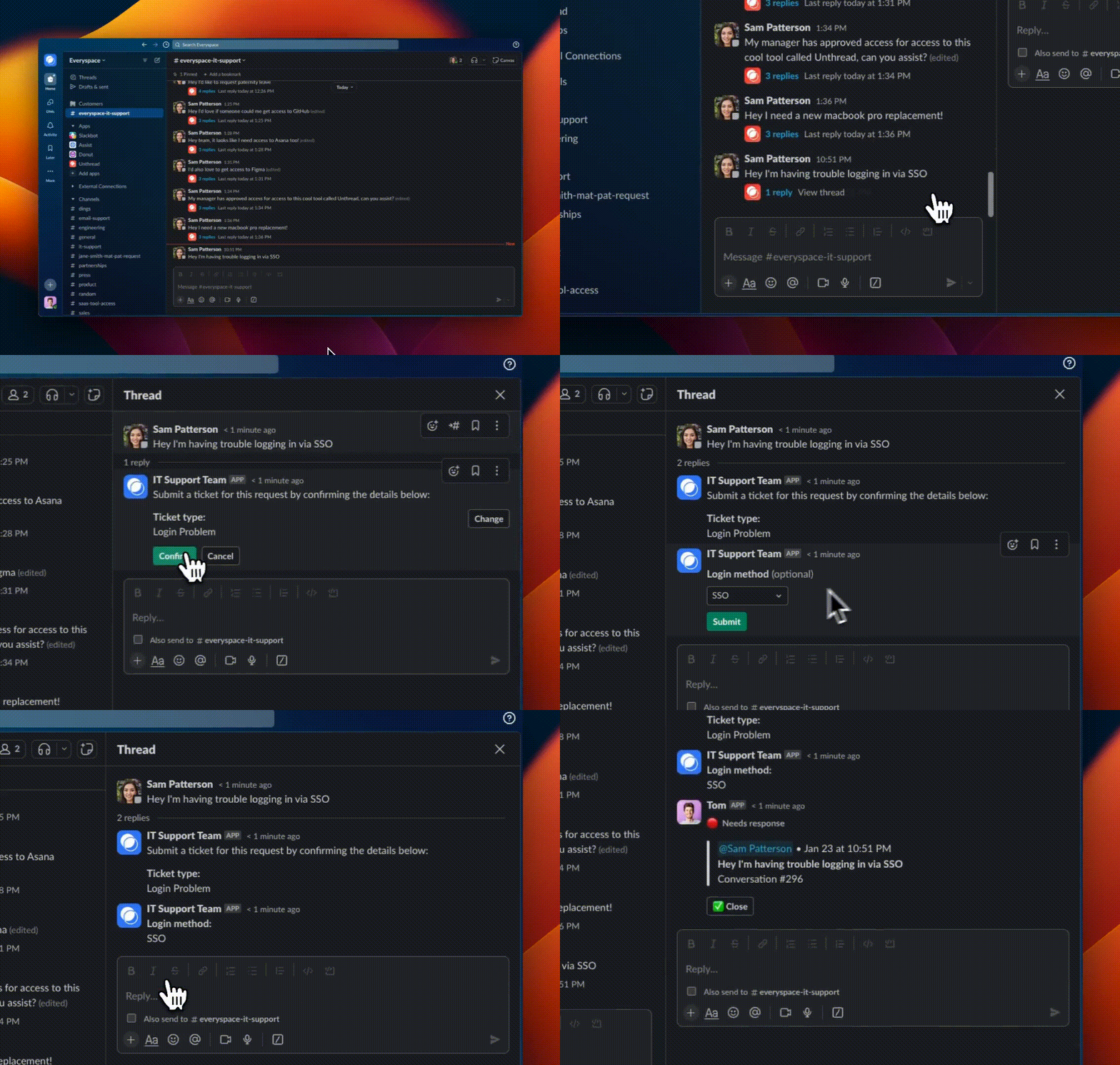
Ticket types help you to categorize your conversations and collect information from customers when tickets are created. See the video below for an example of a ticket created in Slack.
Custom Ticket Properties
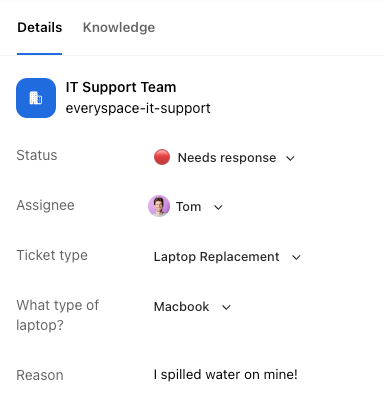
Ticket types can each have their own unique properties, which can be entered manually or automatically detected by Unthread AI. To configure ticket types, navigate to the “Settings” menu in the left sidebar, then select “Settings” under your desired project. Note that ticket types are configured on a per-project basis.” Property types include:
- Short answer (text field)
- Long answer (multi-line text field)
- Single-select (single selection from a list of options)
- Multi-select (multiple selections from a list of options)
- Checkbox
- Date
- User selector (select a user from a list of users)
- File upload (upload a file)
Additional options include:
- Required (indicating whether the field must be filled for a ticket to be created)
- Visible (whether the property is visible to the customer or only used internally)
- Filtering (conditionally showing or hiding the property based on the value of another input)
- Dynamically pulling a list from an external source (using an external select function)

Reusing Custom Fields Across Ticket Types
You can also re-use the same field across multiple Ticket Types, or define the field as a global field across all Ticket Types. This makes it easier to have consistency in data across different conversations.
Deleting a Ticket Type
- Click on the ticket type.
- Click the Options button in the bottom left.
- Select Delete.
Custom AI Prompting per Ticket Type
Each Ticket Type can have its own Additional AI Prompt (sometimes used as “ticket type instructions”) to guide how Unthread AI responds for that specific request type.

Control the order of shared resource links
If you want Unthread AI to share specific knowledge base resource links in a preferred order (for example, in Slack responses), update the Ticket Type’s Additional AI Prompt to explicitly state the order the links should be shared.
Example instruction (use your preferred titles/links):
- “List resources in this order: lemonade travel guide → travel booking guide → office guide.”
Requesting Additional Fields in Slack
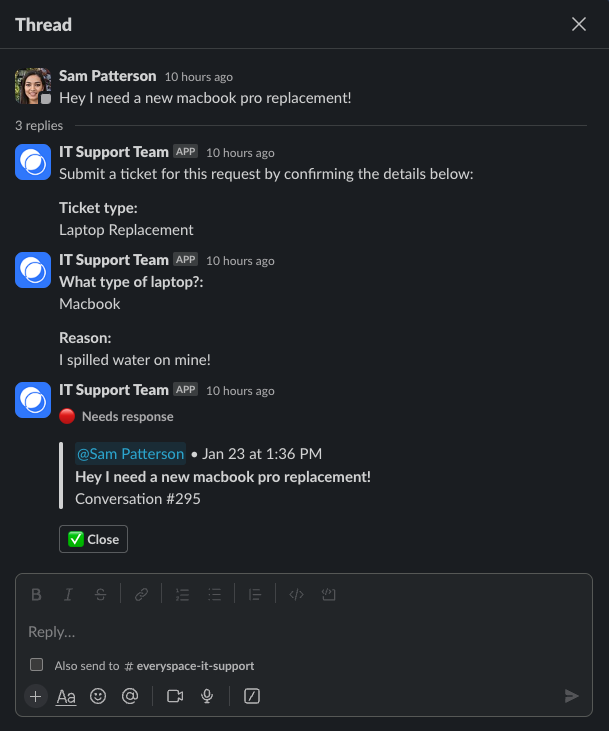
By default, Ticket Types are not shown to customers, but you can enable a custom form for users to fill out when creating a new ticket.
A ticket type will be detected automatically using Unthread AI. The customer can choose to confirm or change the ticket type before continuing.
After confirming, additional ticket properties will be collected if any are specified. See the section below on the different types of properties that can be requested.
Once the required fields are provided, the ticket is created, assigned, and a preview of the ticket is shown in the thread.
Pop-up Ticket Forms
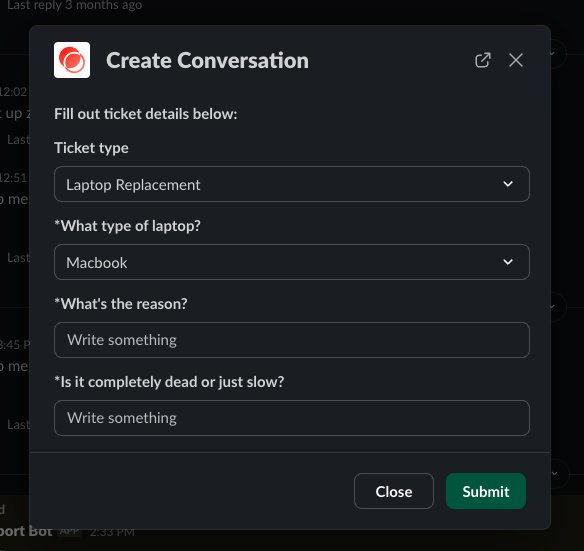
Simplify ticket submission by enabling the pop-up form in Slack and the Unthread web dashboard. Capture all essential details upfront to resolve issues quickly. Enabling the Ticket Type pop-up form in Slack
- Open your Unthread Dashboard.
- Go to “Channels” and click on the name of the channel where you want to enable the pop-up form.
- Go to “Settings” and enable the In-channel ticket tracker.
Analytics
From the “Analytics” tab of your dashboard, you can view a report of tickets broken down by ticket type. This means you’ll be able to analyze:
- How many tickets per ticket type
- Average & median response time per ticket type
- Average & median resolution time per ticket type
Getting Started with Ticket Types
As a platform admin, you can set up your ticket types by navigating to “Settings” > Under the corresponding project click on “Ticket Types” from your Unthread dashboard.