Automatically Tagging Conversations with AI
You can create your own custom set of tags and allow Unthread AI to automatically apply them to conversations.
Creating Tags
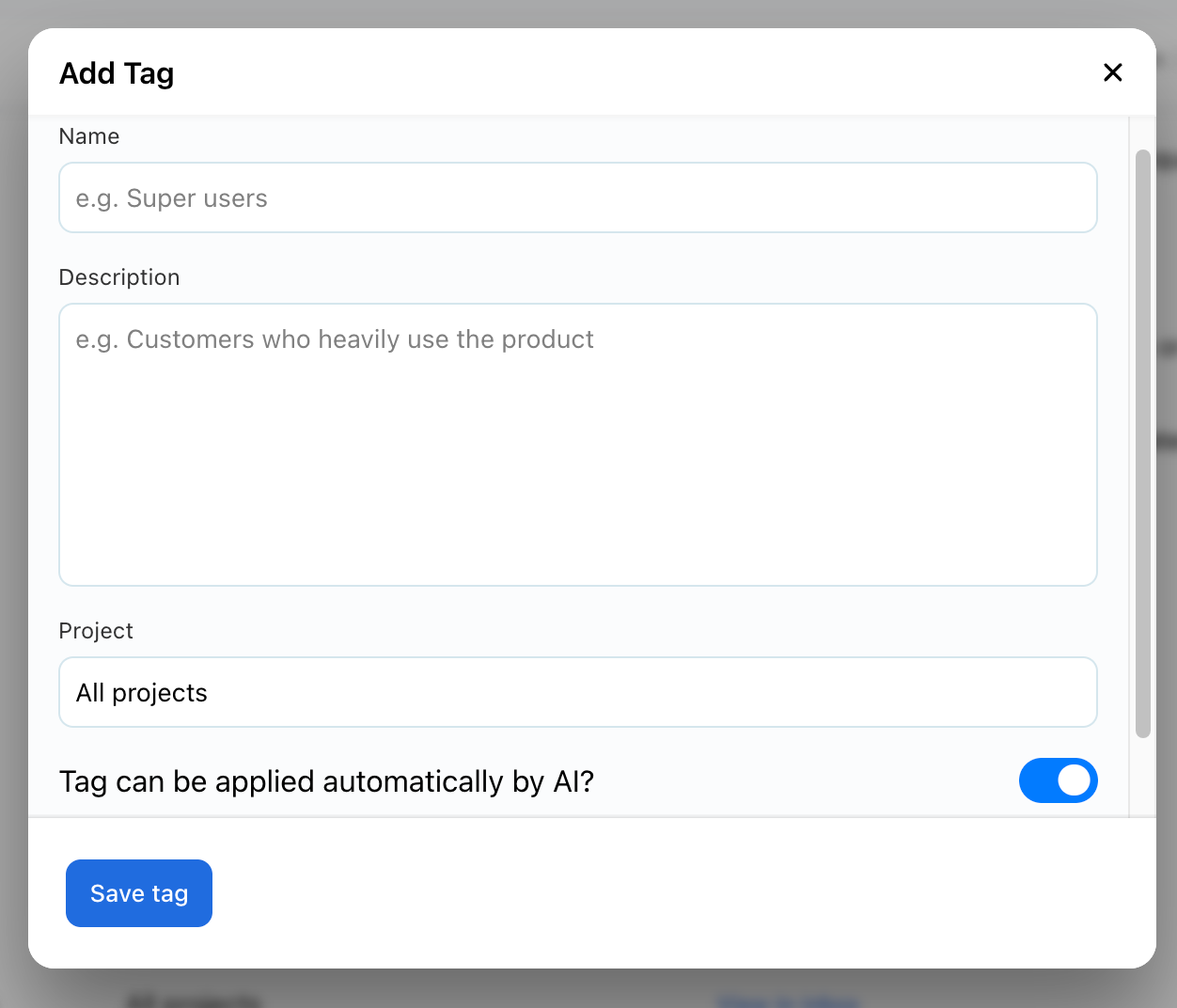
To create a new tag, click “Tags” in the left menu, then select the “Create Tag” button in the top right.
Enter the Name and Description, and select the Project it should apply to. By default, the tag will apply to all projects. The option to “Allow AI to apply tag automatically” is enabled by default and is recommended, as it will maximize Unthread’s capabilities. Only disable this option if necessary.
Managing Tags on a Conversation
Conversations will have tags applied automatically, and you can manually update them after the fact.
Viewing Analytics
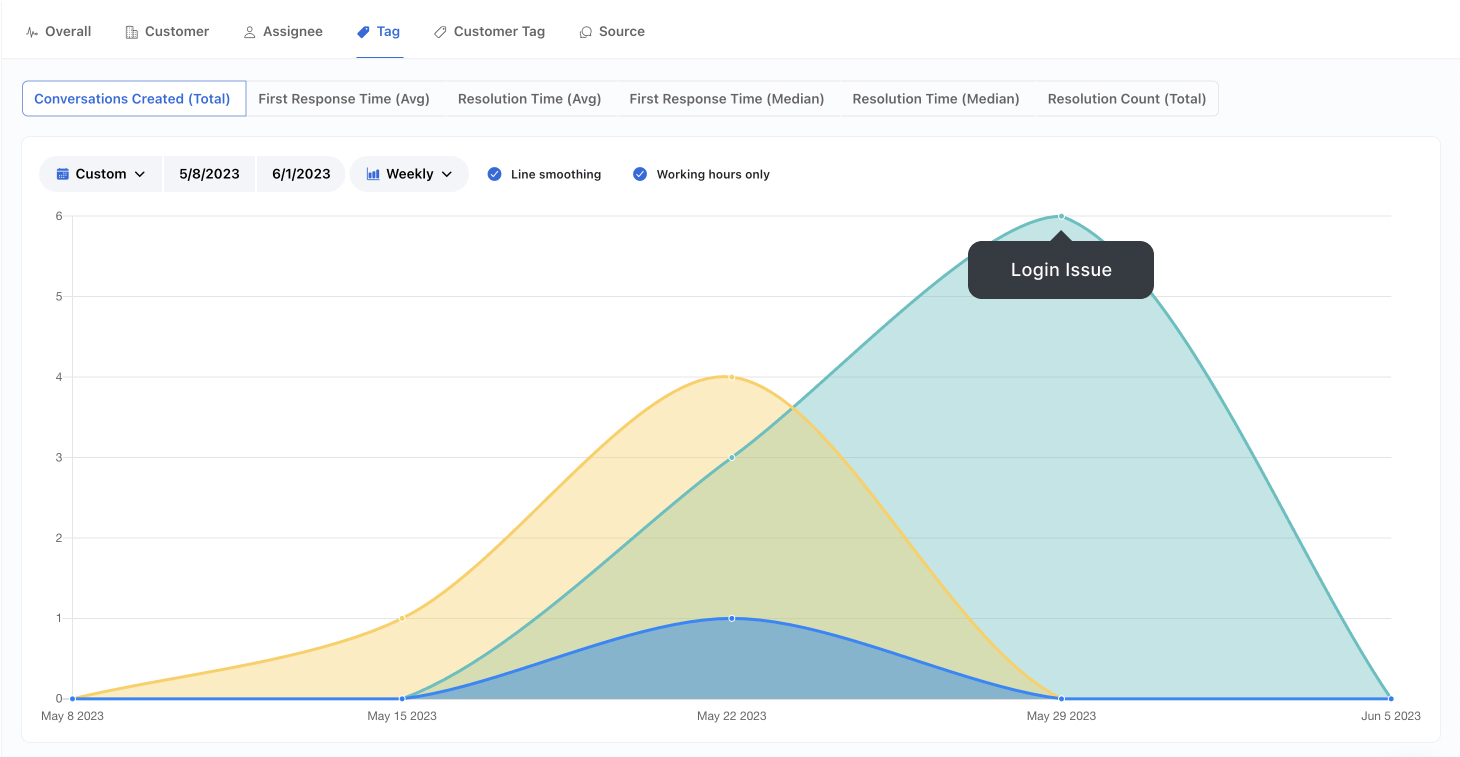
One of the primary benefits of AI tagging is that you will have reports generated that indicate trends of common tags over time.
Unthread analytics supports filtering and breakdowns by tags, and you can combine multiple reports into a dashboard using the dashboard builder.
- Reports can be filtered by tags
- Reports can grouped by tags
- Tag analytics can show trends of common tags over time
Can Tags be applied retroactively?
Yes.
- Tags can be manually updated “after the fact” on a conversation. (So you can go back to older tickets and add/remove tags.)
- If you’re using AI auto-tagging, note that AI tags are only applied when the conversation is created, but you can still manually adjust tags later to override.
If you need to apply a tag to a large set of existing conversations in bulk, the API supports assigning a tag to multiple conversations via an endpoint that takes an array of conversation IDs.